
Three responsibilities, one trading workflow
The chart decides when a signal exists. The message says what that signal means. The connected account decides whether the resulting order is permitted. Keeping those responsibilities clear makes TradingView to Tradovate automation easier to configure and easier to diagnose.
| Layer | Your configuration | What proves it worked |
|---|---|---|
| TradingView | Indicator condition, strategy event, symbol and timeframe | The intended alert appears in the TradingView alert log. |
| Webhook service | Route URL, destination, credentials, account and sizing | Webhook Logs shows the received instruction and processing result. |
| Tradovate | Tradable contract, account permissions, order and risk limits | The order exists in the account; its status and fills are visible. |
Choose the event that actually represents your intent
Indicator alerts
An indicator might expose separate long and short conditions, or send a message through alert(). A long condition can send a fixed buy instruction; a short condition can send sell. The quantity comes from your message or configured sizing. An indicator drawing an exit level does not, by itself, place a protective order.
Strategy order-fill alerts
TradingView strategies use a broker emulator. An order-fill alert is triggered by a realtime simulated fill, and strategy placeholders describe that simulated event. It is not a receipt for a fill in Tradovate. The new broker order may encounter a different price, liquidity or account restriction.
Custom strategy messages
A script can define its own alert() messages or use {{strategy.order.alert_message}} for order-fill events. Follow the script author’s event model. Enabling both message streams without checking the script can send two instructions for one intended trade.
The URL selects the route; the JSON describes the instruction
Copy the full route URL from the execution dashboard into TradingView’s Webhook URL field. Put the order message in Message. Tradovate credentials belong in the connection form, never in an alert example.
A regular webhook is connected to one trading account and can receive multiple alerts and symbols for that account. An improvised account-number field does not configure a second destination. Multi-account execution needs configured copier or Clone Mode routes.
TradingView sends an HTTP POST when the alert triggers. Valid JSON is delivered with the JSON content type. Enable TradingView two-factor authentication and check your current plan’s webhook availability.
Build a structured messageSubmitted, working, filled: read the actual state
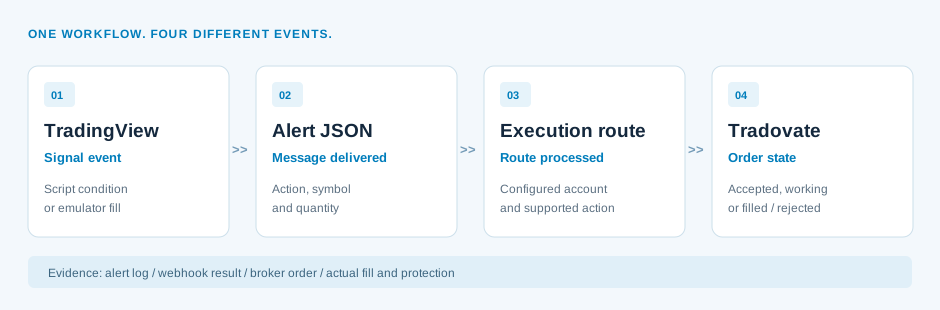
A received webhook establishes delivery. An accepted broker order establishes submission. A working limit order can still be waiting, while a partial fill leaves a smaller position than the requested size. Check the account’s actual state at each stage.
After a Demo entry, read the contract and quantity in Tradovate. Then inspect its working stops and targets. A webhook success record alone does not prove that all protection is present, that a target filled or that a remaining stop moved.
These are a verification sequence, not four interchangeable success labels. The exact broker states remain visible in Tradovate.
Make the first test small and observable
- Confirm the environment and account. Select a permitted Demo account and verify the account identifier on both sides.
- Confirm the instrument and size. Use an available micro contract and one whole contract where the account rules permit it. Review the route multiplier.
- Compare the records. Match the TradingView timestamp and message to Webhook Logs, then to the account order and fill.
- Test the exit. Verify the intended close behavior and any protective orders. Check that no unintended working entry or exit remains.
Repeat the same checks after changing a symbol mapping, strategy event, exit method or account. Demo behavior verifies your configuration; it does not guarantee matching live fills.
Where the automation runs
TradingView runs saved alerts on its servers, and the configured execution service processes the webhook route. This Tradovate workflow does not require an MT5 terminal or Expert Advisor.
Your browser is where you configure and inspect the route. Closing a chart tab does not cancel a saved TradingView alert. Keep the Tradovate session, subscription and account permission valid, and monitor the trading account independently of the chart.