
Start with the last event you can prove
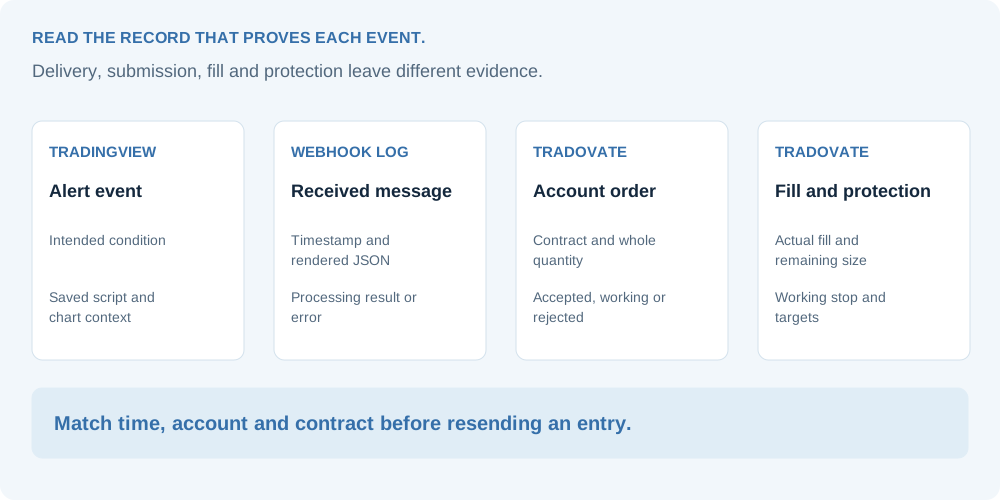
“The alert worked” can mean it fired, reached the webhook, produced an accepted order or filled. Name the last event you can verify. That tells you where to inspect next and prevents repeated entries while the account state is still unclear.
Before sending the same entry again, check positions and working orders in Tradovate. A delayed or unclear response is not proof that no order exists.
The expected TradingView alert never appears
Read TradingView’s alert log first. Confirm that the alert is active, has not expired and uses the intended symbol, timeframe and indicator or strategy event. A historical backtest order does not trigger a new webhook.
Script alerts retain the script and chart context that existed at creation. Changing indicator inputs on the chart leaves an existing alert’s saved setup untouched. Recreate the alert with the intended settings.
Check whether the script emits alert() calls, an indicator alert condition or strategy order-fill events. A line drawn on the chart is not an alert event. A strategy broker-emulator fill and a custom entry-condition message can occur at different moments.
TradingView fired, but the webhook log has no matching record
Check TradingView’s Webhook status column. Copy the full route URL from the execution dashboard and compare it with Notifications >> Webhook URL. Put JSON in Message, not in the URL field.
Enable TradingView two-factor authentication, check webhook availability and confirm that the route subscription is active. A saved alert can continue sending to an expired destination.
TradingView documents webhook constraints including ports 80/443 and a three-second request-processing timeout. Delivery can fail independently of a valid message. Preserve the delivery status and timestamp rather than assuming the broker refused the trade.
The webhook arrived, but the account did not accept the order
| Symptom | What to check | Useful evidence |
|---|---|---|
| Login or authorization error | Correct connection method, corresponding credentials and Demo/Live environment | Connection result and full processing error, with secrets removed |
| Demo succeeds, Live fails | Live account selection, account permission and applicable API eligibility | Environment, account identifier and broker error |
| Access denied | Order permissions, account access and the selected connection’s authorization | The actual rejection text; a successful login alone is insufficient |
| Contract unavailable or symbol mismatch | Incoming ticker, mapping, destination expiry and instrument permissions | The alert ticker and the contract listed in Tradovate |
| Quantity rejected | Whole contracts, multiplier, margin and account contract limits | Requested size, route sizing and actual permitted exposure |
| Pending request rejected | Confirmed route support, price, tick alignment and current market side | Order type, entry price and the exact broker response |
| Stop or target rejected | Absolute versus relative fields, units, side and tick size | Entry reference, requested exits and accepted working protection |
Open Webhook Logs and read Error Details on the failed record. Avoid diagnosing every “Access denied” as a wrong password or every missing order as a symbol issue; the returned error narrows the problem.
The message is malformed or placeholders remain unresolved
Use double quotes around JSON keys and strings. Remove comments, trailing commas and any surrounding markdown code fences. A quoted numeric placeholder can be a valid template, but its rendered value still needs validation.
Check the message that TradingView actually emitted. A strategy placeholder used on an indicator alert may remain unresolved or lack the expected context. Copy the final payload from the alert log and compare the required ticker, order_action and order_contracts values.
The order exists, but its size or direction is wrong
Compare the original alert, the route settings and the accepted order. For fixed sizing, inspect the multiplier. For dynamic sizing, inspect the actual value supplied by the strategy. Futures quantities need whole contracts after the configured sizing logic.
Check whether the event means entry, reduction, close or reversal. A strategy’s sell event may be closing a long; a market-position placeholder describes the resulting strategy direction. The two messages are not interchangeable.
Also inspect duplicate signal sources. The same intended action can be emitted by both order-fill events and custom alert() logic. An old alert may remain active after a replacement was created. Review the configured events before sending another test.
The entry filled, but protection or a partial exit is wrong
Read the working protective orders in Tradovate. Check their prices, quantities and association with the open exposure. A stop that covers one contract does not cover a position of three contracts.
For multiple targets, add the actual target quantities. Their combined allocation must fit the intended entry. Then inspect the remaining stop after the first target fills. Breakeven is confirmed by an accepted stop amendment, not by the chart touching the TP1 line.
Review who owns exits. Strategy-generated closes and execution-managed targets can conflict when both operate without a coordinated plan. Check any remaining working order after the position closes.
Review exit ownership and target allocationWhat to include in a support request
A useful report links the signal to the account result. Include time and timezone, route identifier, environment, masked account identifier, incoming ticker, rendered JSON, the processing result and the relevant Tradovate order or rejection.
For a missing stop or target, include the entry fill and the working protective orders. For an unexpected partial exit, include the original quantity, target allocation and remaining position. Keep passwords, API secrets and the full private webhook URL out of public posts.
Contact the execution service for connection-specific questions, and the broker or firm for account permissions. T2T explains the setup and does not process your trading-account data.