
Build a readable alert message
Start with the smallest message that expresses the intended action. This builder validates whole fixed quantities, numeric prices and known ES/MES/NQ/MNQ tick increments. It checks the stop/target side when a fixed action and reference price are supplied. It does not verify your credentials, account eligibility or connector permissions.
01 / CONFIGURE THE MESSAGE
02 / COPY THE ALERT MESSAGE
The builder formats text locally. It does not connect to an execution service or broker and cannot place an order.
The message fields that matter
| Field | Purpose | Example |
|---|---|---|
ticker | Incoming symbol. The route must resolve or map it to a tradable contract. | MES1! or a verified expiry-specific symbol |
order_action | The instruction associated with the alert event. | buy, sell, close |
order_contracts | Requested quantity before any configured sizing policy. | 1 whole futures contract |
platform_name | Optional destination identifier. The API documentation uses tradovate_api; the Login path must follow its own current route configuration. | Omitted from these route-bound examples. Do not guess the identifier or mechanically swap connection names. |
order_type | Order-type request. Pending entries need a price and route support. | market, limit, stop formats |
price | Pending entry price, or an explicitly supplied reference value. | A positive number or a supported TradingView price placeholder |
sl_price / tp_price | Absolute protective prices. | For an illustrative long at 6000: 5995 / 6010 |
stop_loss / take_profit | Relative distances in the supported sltp_type interpretation. | Confirm units with the configured Tradovate workflow. |
Do not mix absolute prices and relative distances casually. A value of 20 can mean a price, a point distance or a tick count in different systems. For the builder above, SL and TP fields are absolute prices only.
Buy and sell examples with fixed contracts
Create separate messages for separate indicator conditions. A fixed buy message belongs to the long-entry condition; a fixed sell message belongs to the short-entry condition. Do not attach both to an undifferentiated alert.
{"ticker":"MES1!","order_action":"buy","order_contracts":1,"order_type":"market"}{"ticker":"MNQ1!","order_action":"sell","order_contracts":1,"order_type":"market"}These continuous symbols are examples used for chart analysis. Verify their destination mapping; the final order must reference an executable expiry in your account.
Strategy entries, reversals and exits need explicit messages
{{strategy.market_position}} produces long, short or flat. It describes the resulting simulated position. It does not state whether an order opens exposure, reduces it, closes it or reverses it.
{{strategy.order.action}} produces buy or sell for the simulated order. A sell can close a long or open a short; forwarding every sell as a new entry can change the broker position unexpectedly. Neither placeholder is a universal entry-and-exit specification.
The builder therefore keeps order_action explicit in both modes. Use separate buy, sell and close messages for the corresponding verified script events. A script’s alert() can emit complete JSON; order-fill workflows can use a per-order alert_message with {{strategy.order.alert_message}} in TradingView’s Message field. Verify which events supply each value.
One long-entry event
This fixed-action example belongs only to a verified long-entry event. It is not a template to attach to every strategy fill. A short entry needs its own sell instruction, and a close requires the route’s tested close behavior.
{"ticker":"MES1!","order_action":"buy","order_contracts":1,"order_type":"market"}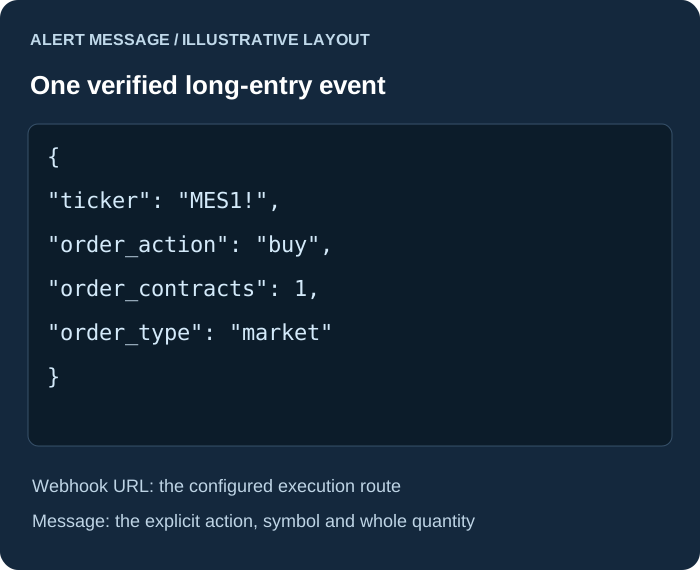
Market, limit and stop: format is only one part
A market request asks for submission at the available market. Native Tradovate also offers limit, stop and stop-limit orders. Connector support is a separate requirement and must be checked for the selected route.
Limit and stop requests need a price and verified pending-entry support on the selected route. Confirm the accepted order type, price and working status in Demo. Native platform capability alone is insufficient evidence for an executable connector template.
The prices are illustrative. A buy limit normally belongs below the current offer; a buy stop normally belongs above it. A strategy order-fill alert may arrive after its simulated pending order has already filled. Forwarding that event as a new pending order is a different execution model.
Absolute protective prices and a clear close instruction
For a long entry around an illustrative 6000, 5995 is below the entry and 6010 is above it. For a short, the directions reverse. Tick alignment matters: the index contracts covered in this guide use 0.25-point outright ticks.
{"ticker":"MES1!","order_action":"buy","order_contracts":1,"order_type":"market","sl_price":5995,"tp_price":6010}A market order can fill away from the chart price. Check the accepted protective levels and quantities in Tradovate, including what happens after a partial fill.
{"ticker":"MES1!","order_action":"close","order_contracts":1}A close instruction must be tested for the selected route’s sizing and position semantics. Broader closeall behavior and order selectors are connector-specific; consult the execution service documentation before relying on them. Closing a position and canceling a pending order are separate actions.
Before copying into TradingView
- Use double quotes, no trailing comma and no comments inside JSON.
- Keep fixed contract quantity as a positive whole number.
- Use strategy placeholders only where the selected event supplies them.
- Use a price for a confirmed pending-entry workflow.
- Keep broker passwords and API secrets out of the alert message.
- Paste the route URL in Webhook URL and the JSON in Message.
- Check the rendered alert, then the account order and protection.
A valid JSON preview only establishes format. It does not establish a tradable contract, a sufficient balance, permission to trade or a guaranteed fill.